1.2 Beta 18 Free beta version

Photoshop-like editing.
Inside Blender.

Bring a familiar Photoshop-like workflow to Blender. Paint, select, mask and adjust textures or renders, then continue with supported PSD layers in the same workspace.

Windows x64 · Blender 5.2 · HasaMisa sign-in required

Free beta version. Free and Pro editions are planned for launch; final features and pricing will be announced before the transition.

One place to keep editing.
  • Layers & masks
  • GPU previews
  • Selections
  • PSD import/export
From idea to the next edit

The tools you need.
Where you need them.

Clean up a texture, isolate a detail or change the colour. Choose a tool below to see the steps in PhotoBlend.

BrushEraser

Paint on a layer.

Keep highlights, cleanup and paint on separate layers so the next revision stays simple.

  1. Create your layer

    Add a new pixel layer and select it in the layer stack.

  2. Choose the brush

    Select Brush in the left toolbar. Right-click the canvas to set radius, hardness, colour, opacity and flow.

  3. Paint, then refine

    Draw on the canvas. Switch to Eraser to remove pixels from that layer; the GPU preview updates the composite.

Default shortcutsBBrushEEraser
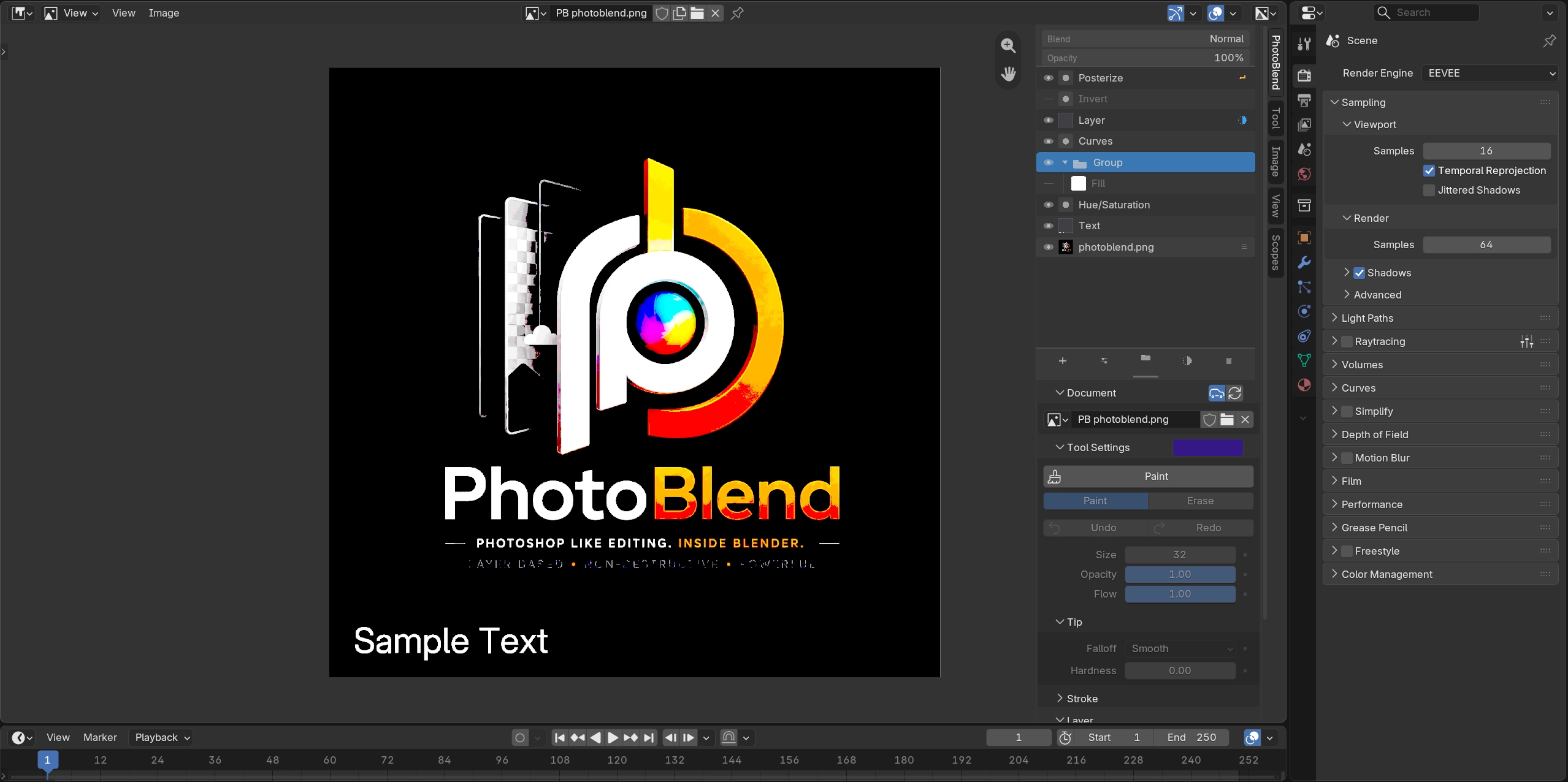
PhotoBlend's image editor and material preview inside Blender
The layer editor and its material preview in Blender. View screenshot

Shortcuts shown here are defaults. Change them in PhotoBlend's Shortcuts panel to suit your workflow.

PhotoBlend 1.2

Bring the layers.
Keep the options.

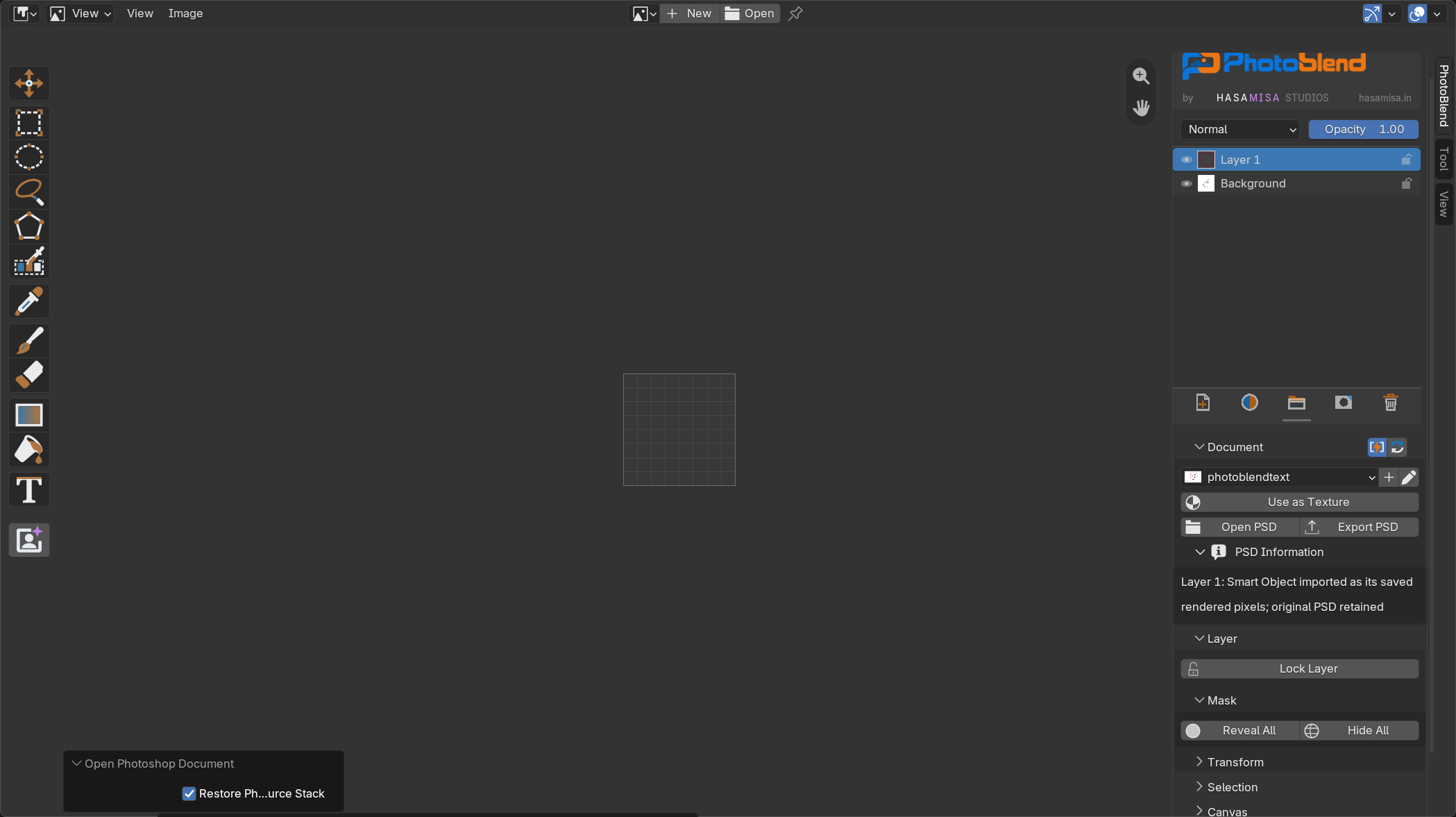
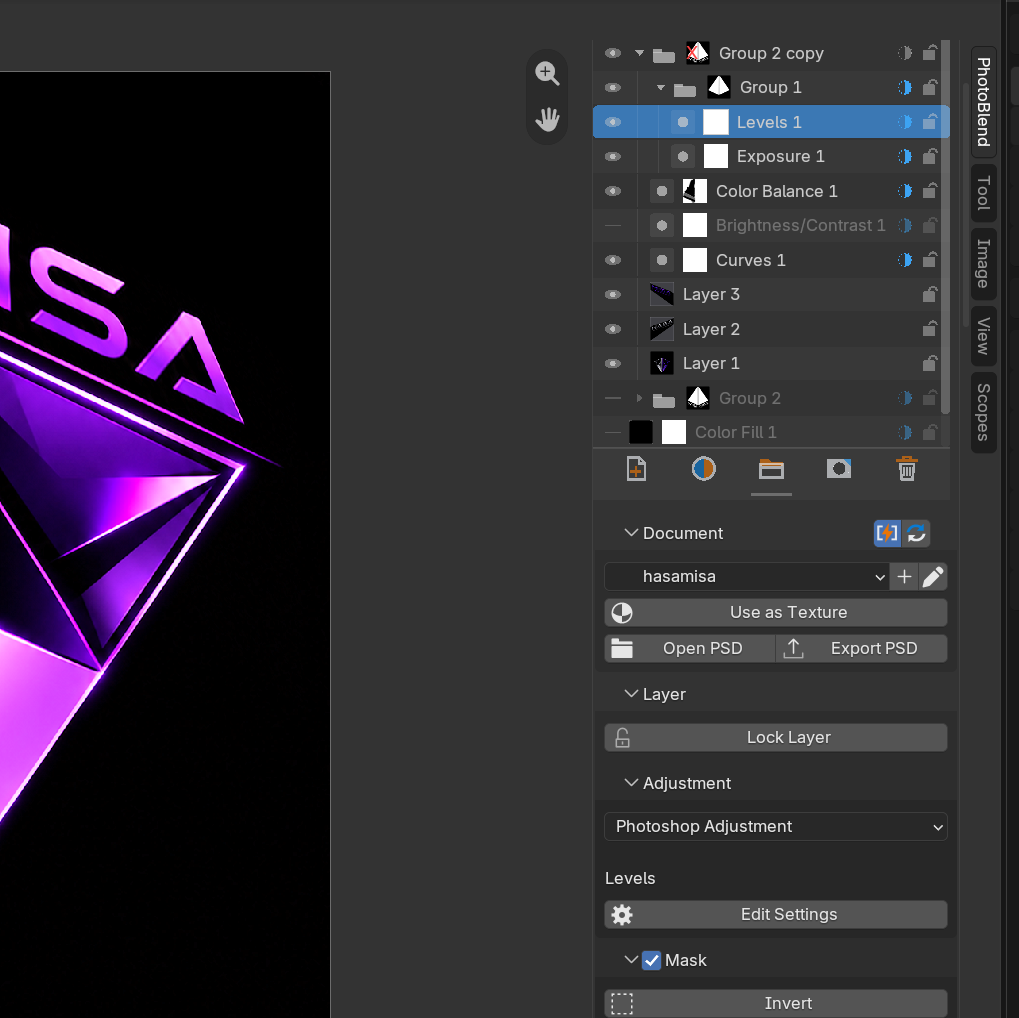
Already started in Photoshop? Open your PSD or PSB in PhotoBlend and continue with supported layers, groups, pixel masks and adjustments. Your layer names and organisation come with it.

Your workflow can go both ways.

Export supported adjustments as editable PSD settings, or preserve the rendered appearance with PhotoBlend source layers retained in the file.

PSD compatibility is evolving. Some effects arrive as rendered layers or groups; unsupported blend modes and unknown adjustments may need simplification in the source editor. Keep your original PSD and Blender file.

Coming next

Next on the canvas.

Planned features. These are not included in the current beta.

Coming soon

AI background removal

Automatic background removal and alpha cutouts for faster texture preparation.

Coming soon

AI-assisted editing

AI tools and automated cleanup for repetitive image-editing work.

Coming soon

3D painting into layers

Paint on the model into the selected PhotoBlend layer while the material displays the full composite.

PhotoBlend 1.2 Beta 18

Put it to work on your next texture.

Add a layer editor to the Blender workflow you already use. Try the current free beta for Windows x64 and Blender 5.2. Sign in with your HasaMisa account inside Blender.

PhotoBlend 1.2 Beta 18

Free beta version.

Explore the current beta with a HasaMisa account. No purchase or payment details required.

Windows x64 · Blender 5.2 · 18.3 MiB · Verified Google account and beta activation required before download.

Free and Pro editions are planned for launch. Final features and pricing will be announced before the transition.

Who is PhotoBlend for?

Blender artists who edit textures, prepare images or refine renders and want layers, selections, masks and adjustments in the Image Editor.

How much of my PSD stays editable?

Supported layers, groups, pixel masks and adjustments stay editable. Some unsupported effects arrive as rendered layers or groups. Keep your original PSD for features that need the source editor.

What do I get in the current beta?

Layers and groups, painting, selections, masks, adjustments, effects, basic shapes, transforms, GPU previews, Render/Viewer imports and PSD import/export. AI tools and painting on a 3D model into PhotoBlend layers remain planned features.

Is the beta free? What happens at launch?

The current beta is free to use with a HasaMisa account. No payment details are needed. Free and Pro editions are planned for launch; final features and pricing will be announced before the transition.

Can I work offline?

Sign in online first. PhotoBlend verifies the connection daily when online and allows up to seven days offline, bounded by session expiry. Editing and export lock if access expires or is revoked; reconnect to continue. Blender project saving and rendering remain available.

How do I install, update or report a bug?

Follow the installation and troubleshooting guide. Install beta 18 manually once to enable signed update checks, confirmed installation and repair downloads inside Blender. See release notes and known limitations before updating.


Feedback on the PhotoBlend beta?

Share a question or bug report. Include your PhotoBlend and Blender versions, what happened and the shortest steps to reproduce it.

Or email [email protected].